Host a custom window from XAML
Show-FluenceWindow displays a XAML document or a window built in PowerShell. It handles library loading, the WPF application, and the modal window lifetime. Load only trusted XAML: XamlReader constructs objects and does not sandbox the document.
Start with a XAML string
Declare the WPF and Fluence namespaces. A fluence:FluenceWindow root supplies Fluence window chrome; a non-window root is hosted in a new FluenceWindow.
$xaml = @'
<fluence:FluenceWindow
    xmlns="http://schemas.microsoft.com/winfx/2006/xaml/presentation"
    xmlns:x="http://schemas.microsoft.com/winfx/2006/xaml"
    xmlns:fluence="http://schemas.fluencewpf.com"
    Title="Sample" Width="480" Height="240">
    <StackPanel Margin="24">
        <TextBlock Text="A PowerShell window" Foreground="{DynamicResource TextFillColorPrimaryBrush}" />
        <fluence:Button x:Name="CloseButton" Content="Close" Margin="0,16,0,0" />
    </StackPanel>
</fluence:FluenceWindow>
'@

Show-FluenceWindow -Xaml $xaml -Initialize {
    param($Window, $Data)
    $Window.FindName('CloseButton').add_Click({
        Close-FluenceWindow -Window $Window
    }.GetNewClosure())
}
The call blocks until the window closes. Use DynamicResource for theme colors and brushes so open controls can respond to theme and accent changes. See the theme key catalogue.
Move layout into a file
The module can host XAML in a Fluence window in either theme.
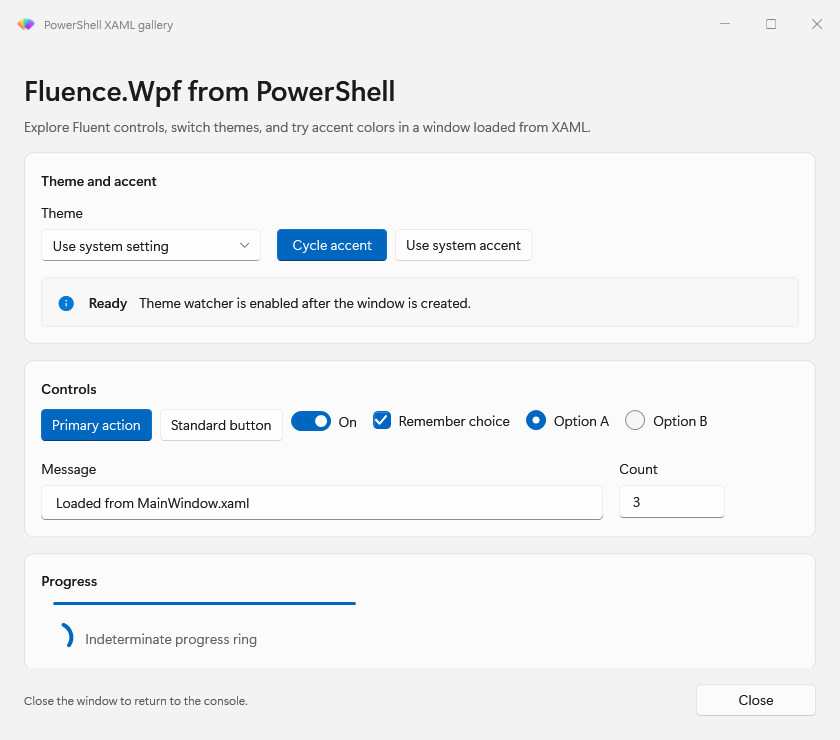
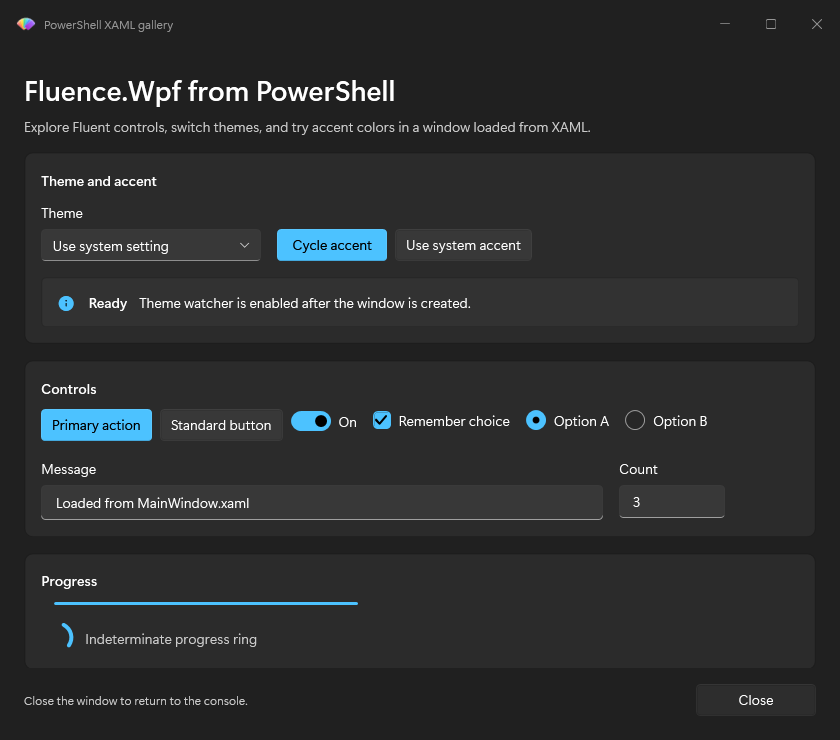
Store a complete XAML document beside your script and pass its path. The runnable example loads MainWindow.xaml.
Show-FluenceWindow -XamlPath (Join-Path $PSScriptRoot 'MainWindow.xaml') -WatchSystemTheme -Initialize {
    param($Window, $Data)
    # Find named controls and attach handlers here.
}
-WatchSystemTheme watches Windows theme changes while this window remains open. With the requested theme at Auto, an open window follows the Windows Light and Dark setting.
Attach handlers and retain state
-Initialize receives the window and the -Data hashtable. Find controls by x:Name, then attach handlers through add_<Event>. Capture local variables with .GetNewClosure().
Show-FluenceWindow -Xaml $xaml -Data @{ Clicks = 0 } -Initialize {
    param($Window, $Data)
    $button = $Window.FindName('CloseButton')
    $button.add_Click({
        $Data.Clicks++
        Close-FluenceWindow -Window $Window -Result $Data.Clicks
    }.GetNewClosure())
}
On an MTA caller, -Initialize, -Content, and event handlers run in a module-owned STA runspace. They cannot read caller variables or functions. Pass state through -Data and keep callbacks self-contained. On an inline STA caller, they run on the caller's WPF thread. See UI threading.
Return a result
Close-FluenceWindow -Result <value> stores a value before closing. Show-FluenceWindow returns that value; a title bar close returns $null. Add -PassThru to return a Fluence.WindowResult with Result and Closed properties.
$outcome = Show-FluenceWindow -Xaml $xaml -PassThru -Initialize {
    param($Window, $Data)
    $Window.FindName('CloseButton').add_Click({
        Close-FluenceWindow -Window $Window -Result 'Done'
    }.GetNewClosure())
}
$outcome.Result
Configure the window
When the root is a non-window element, use -Title, -Width, -Height, and the chrome options on Show-FluenceWindow. These options also apply to a FluenceWindow root. Common options include -Topmost, -ResizeMode, -SizeToContent, -StartupLocation, -CornerStyle, and switches for title and caption buttons.
Set the host title-bar text with -Title (also available as -TitleBarText) and its icon with -TitleBarIcon. The icon accepts a local path, file: URI, or pack: URI. -ShowIcon:$false hides the built-in host icon. When you supply a custom TitleBar or set -ExtendsContentIntoTitleBar, the built-in title-bar icon and text are hidden so the custom title-bar content can take their place. For a XAML FluenceWindow root, these parameters configure its host window icon and title-bar text.
Show-FluenceWindow -Xaml $xaml -Title 'Setup' -TitleBarIcon "$PSScriptRoot\assets\app.ico" -ResizeMode NoResize -CornerStyle RoundSmall -NoMaximizeButton
-Owner works when the owner is on the Fluence UI thread. A cross-thread owner on an MTA host produces a warning and the new window appears without a parent.
Use -Content { param($Window, $Data) ... } when building the body in PowerShell rather than XAML. The block must set $Window.Content and can attach handlers in the same way as -Initialize.
Command details
- Show-FluenceWindow and Close-FluenceWindow
- Change appearance for a live window backdrop
- Examples catalogue for complete window scripts